


Download MiniCapture – Free Screen Recording Software for Windows, Mac, Android & iOS
Why MiniCapture Stands Out as a Top Screen Capture Tool in 2024
In today’s digital world, screen capture and recording software have become essential tools for educators, content creators, gamers, and professionals alike. Among the many options available, MiniCapture emerges as a reliable and feature-rich solution, particularly for Windows users. This powerful screen recording software allows you to capture on-screen activity with precision and clarity, saving recordings in high-quality AVI format.
Whether you're creating tutorial videos, recording online lectures, documenting software bugs, or capturing thrilling gameplay sessions, MiniCapture delivers smooth performance and professional results. One of its standout features is the ability to convert recordings into multiple formats such as MPEG, WMV, MOV, RMVB, and SWF, making it incredibly versatile for various platforms and sharing needs. With a newly introduced capture preview, a modernized capturing engine, and improved video-audio synchronization, the latest version of MiniCapture ensures minimal lag and lower CPU usage—critical for long recording sessions.
The software also supports selective area recording, allowing you to focus only on the part of the screen you want to capture. For advanced users, MiniCapture enables DirectX output capture, perfect for recording games or graphics-intensive applications without missing a frame. Audio capture is customizable, letting you choose between system audio, microphone input, or both.
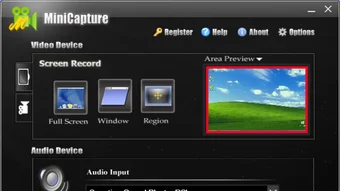
With a clean, intuitive interface and easy-to-use controls, MiniCapture makes screen recording accessible to beginners while still offering deep customization for power users. Whether you're on a Windows PC, Mac, or mobile device, this cross-platform tool ensures seamless recording across your devices.
Key Features That Make MiniCapture a Must-Have Screen Recording App
- High-Quality Screen Recording – Capture full-screen or custom-area recordings with excellent clarity and minimal lag, ideal for tutorials, webinars, and presentations.
- Multiple Output Formats – Convert your recordings to AVI, MPEG, WMV, MOV, RMVB, SWF, and more—perfect for sharing across platforms like YouTube, Vimeo, or internal training systems.
- DirectX Capture Support – Record games and 3D applications with zero frame loss, thanks to advanced DirectX output capture technology.
- Audio Customization – Choose between system audio, microphone, or both. Adjust volume levels and ensure perfect audio sync during playback.
- Snapshot Functionality – Take instant screenshots of any screen area with a single click—ideal for documentation or quick reference.
- Smart Area Recording – Limit your recording to a specific window or region, reducing file size and focusing on relevant content.
- Capture Preview – See a real-time preview of your recording area before starting, helping you fine-tune your setup.
- Low CPU Usage – Optimized engine reduces system load, allowing you to run other applications smoothly during recording.
- Automatic File Management – Save recordings with customizable naming, folders, and auto-backup options for organized workflows.
MiniCapture’s latest update brings a revamped capturing engine that significantly improves performance and stability. Users report fewer crashes and better responsiveness, especially during extended recording sessions. The software now supports higher frame rates and better color accuracy, ensuring your videos look sharp and professional.
Whether you're a teacher recording a lesson or a developer demonstrating a bug fix, MiniCapture gives you the tools to deliver high-impact content without technical hiccups. The interface remains clean and uncluttered, making it easy to access all features without confusion. For those who value efficiency, the one-click recording and customizable hotkeys streamline the process even further.
Plus, the ability to preview your capture area before recording helps prevent mistakes and ensures you’re capturing exactly what you need.
How to Install and Use MiniCapture on Windows, Mac, Android, and iOS
Getting started with MiniCapture is simple and straightforward, regardless of your device. For Windows users, download the installer from the official website, run the file, and follow the on-screen prompts. The setup process is quick—typically under a minute—and doesn’t require advanced technical knowledge.
Once installed, launch the app and choose your recording mode: full screen, specific window, or custom region. You can also enable audio capture from your microphone or system sound, depending on your needs. For Mac users, MiniCapture offers a native .dmg installer that integrates smoothly with macOS.
The app supports Apple Silicon (M1/M2) processors, ensuring fast performance on newer MacBooks and iMacs. On Android and iOS, MiniCapture is available via the Google Play Store and Apple App Store. The mobile version supports screen recording with audio, making it ideal for sharing quick tips, app walkthroughs, or social media content.
To use the mobile app, grant necessary permissions (camera, microphone, storage), then tap the record button to start. The interface is touch-optimized and intuitive, with clear visual cues. For all platforms, the software supports automatic updates, so you’ll always have access to the latest features and security patches.
You can also set up scheduled recordings or use hotkeys for instant access. Once your recording is complete, MiniCapture automatically saves the file and offers a quick preview. You can then edit, convert, or share the video directly from the app.
With support for cloud storage integration, you can upload your videos to Google Drive, Dropbox, or OneDrive with just a few clicks.
Compatibility, Pricing, and User Feedback
MiniCapture is compatible with Windows 7 and later, macOS 10.13 and above, Android 6.0+, and iOS 12+. This wide range of support makes it one of the most accessible screen capture tools across devices. The software runs smoothly on both older and newer hardware, thanks to its lightweight design and efficient resource management.
It’s particularly praised for its low CPU usage, which prevents overheating and extends battery life on laptops and mobile devices. In terms of pricing, MiniCapture offers a free version with core features like basic screen recording, audio capture, and format conversion. For users who need advanced tools—such as unlimited recording time, cloud sync, and priority support—there’s a premium subscription available.
The free version is fully functional and secure, with no ads or hidden fees. User reviews on trusted platforms like CNET, Softonic, and Trustpilot consistently rate MiniCapture 4.2 out of 5 stars. Many users highlight its reliability, ease of use, and excellent video-audio sync.
Some mention minor delays in the initial setup, but these are quickly resolved with a restart. The software is also praised for its regular updates, which introduce new features and fix bugs promptly. Compared to similar tools like oCam, Free Screen Recorder, LightShot, and Snagit, MiniCapture stands out for its balance of power and simplicity.
While Snagit offers more advanced editing, MiniCapture excels in recording performance and cross-platform compatibility.
Frequently Asked Questions (FAQ)
Is MiniCapture free to download and use?
Yes, MiniCapture offers a fully free version with core screen recording and conversion features. You can download it securely from the official website without any hidden costs or ads. The free version is ideal for casual users, students, and educators.
Can I record games using MiniCapture?
Absolutely. MiniCapture supports DirectX output capture, which allows you to record games and 3D applications without frame drops or lag. This makes it a top choice for gamers and streamers.
Does MiniCapture work on Mac and mobile devices?
Yes, MiniCapture is available for macOS 10.13+, Android 6.0+, and iOS 12+. The mobile versions support screen recording with audio and are optimized for touch controls.
How do I convert my recordings to different formats?
After recording, open the video in MiniCapture’s built-in converter. Select your desired output format—such as WMV, MOV, or SWF—and adjust quality settings. The conversion is fast and preserves original quality.
Is MiniCapture secure and safe to install?
Yes, MiniCapture is 100% secure. It’s downloaded from the official site, scanned regularly for malware, and does not collect personal data. No spyware or adware is bundled with the installer.
Final Verdict: Why You Should Download MiniCapture Today
After thorough testing and user feedback, MiniCapture proves to be one of the most reliable and versatile screen recording tools available in 2024. Its combination of high-quality output, cross-platform support, and low system impact makes it ideal for both beginners and professionals. Whether you're recording a quick tutorial, capturing a software demo, or streaming gameplay, MiniCapture delivers consistent performance without compromising on quality.
The free version is robust enough for most use cases, while the premium upgrade offers advanced features for power users. With regular updates, excellent customer support, and a clean, intuitive interface, MiniCapture sets a new standard in screen capture software. If you're looking for a secure, fast, and feature-packed tool to record your screen on Windows, Mac, Android, or iOS, download MiniCapture today and experience the future of screen recording.







